Getting started
Nine things to do with Spinery, each in a few lines, with the way through the app written as you see it. The first three on day one, in this order; the others when you need them.
Day one
-
Next step: add your first record
Sign in and create your circle
Open the app and tap "Continue with Google", or "With e-mail and password". If it's your first time, the account is created right there: we ask your name and, if you sign in with your e-mail, write to you to confirm it.
On your first sign-in the app shows "To use Spinery": what the artificial intelligence does, as part of the service, and what reaches the provider. Tick the two boxes for the Terms and tap "Accept and continue".
Then choose. "Create a circle": a name, the currency for prices and the language, and the collection is yours. "I have an invite", if someone sent you the link to theirs: paste it and you're in. An account belongs to one circle only.
For now Spinery is invitation-only.
In the app"Continue with Google" or "With e-mail and password" → "Accept and continue" → "Create a circle", or "I have an invite"
-
Next step: write down the provenance
Add your first record
It takes a few seconds: you find the record and pick your edition, and Spinery fetches all the detailed information about the work and that edition, from the tracks to the cover.
- Scan the barcode, or search. Tap "Add" and then "Scan the barcode", or type the title, artist or catalog number in the search field. Vinyl from before the eighties has no barcode: search for it by title.
- You reach the record. The barcode or the search takes you to the record; the same barcode often belongs to several editions.
- Pick your edition. In "Which edition do you have?" you tell them apart by year, label, country and catalog number; when the barcode points to just one, the app only asks "Is it this one?". If you're not sure, "I don't know which edition": you narrow it down later, from the record's page. Then tap "Add to the collection".
- Provenance, if you like. Right after comes "The record in your hand": write it now, later or never.
- Done, often in a few seconds. A record you can't find you enter "By hand".
In the appAdd → "Scan the barcode" → "Which edition do you have?" → "Add to the collection"
-
Write down the provenance
It's the part no database knows: where the record comes from. Right after "Add to the collection" you find "The record in your hand": how it arrived, from whom, when, where, and the story, if there is one.
Every field is optional, and for the date the year alone is enough. If you don't have time now, tap "Later": you write it whenever you like from the record's page.
Later, in the appthe record's page → "Tell the story", or the ⋯ menu → "Edit your copy"
And then, whenever you like, the other six things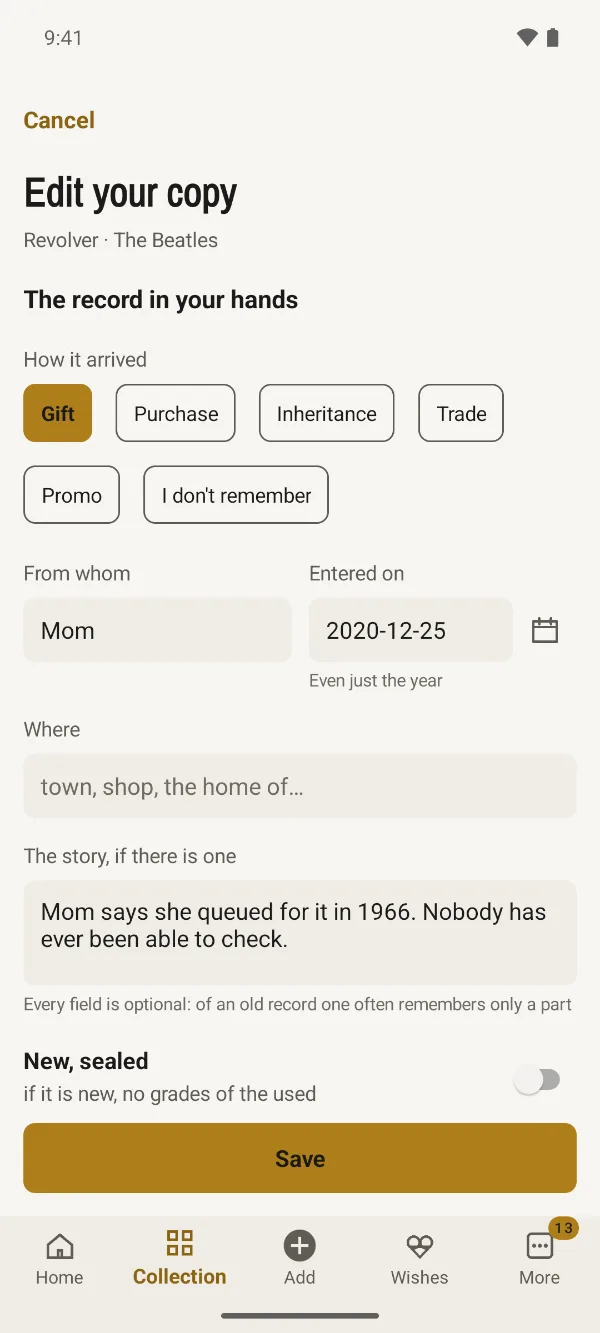

Then, whenever you like
-
Invite someone
A collection is easier to keep with more people: the people you live with, your record-digging friends. Whoever has the circle opens "The circle", taps "Invite someone", writes who it's for (only for you, as a reminder) and sends the link however they like.
The link is valid for seven days, for one person: whoever opens it creates an account or uses theirs, and joins. Everyone has their own ratings, notes and wishes; notes are seen only by whoever writes them.
In the appMore → The circle → "Invite someone" → "Send the link"
-
Put a record in your wishes
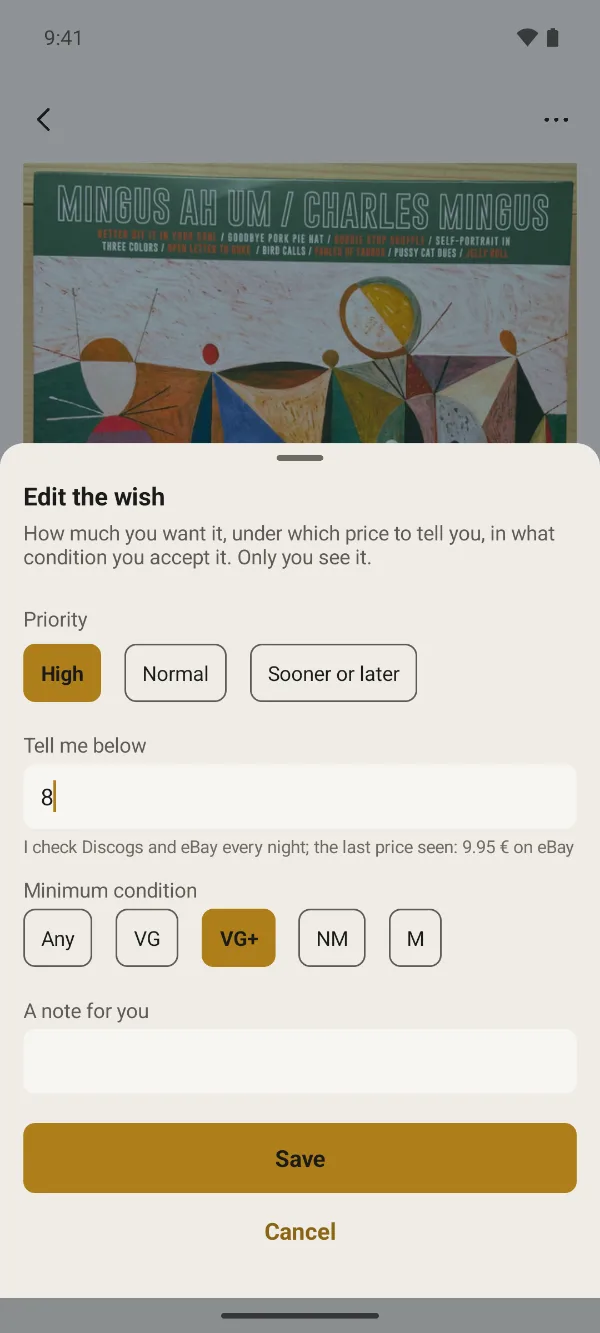
You find the record you've been after for years the same way as for the collection, from "Add", and then tap "Put in the wishes". If any pressing will do, choose "I don't know which edition".
Give it a priority (High, Normal, Sooner or later) and, if you like, a threshold in "Tell me below". Every night we check prices on Discogs and eBay: when it drops below the threshold, or a copy turns up where there were none, you find it in your notifications.
In the appAdd → search for the record → "Put in the wishes" → "Tell me below"
-
Arrange the collection and print QR labels
You create the places where you keep your records once, in More → Places: "Living room", and inside it "Shelf B". Then, in "Where you keep it" on each record, pick its place and, if you like, add a more precise note. In the collection, "Filters" sorts by artist, title, year, latest additions or rating, and shows only one decade, one genre or one format.
In the appMore → Places → "Add a place"
QR labels go on sleeves and cases: scan the code and the record's page opens. Choose the records, for instance the ones still without a label, and where to start on the A4 sheet of 21 (Avery L7160 and compatible); the sheet opens in your phone's browser, and from there you print it or save it as a PDF.
In the appMore → QR labels → "Open the sheet"
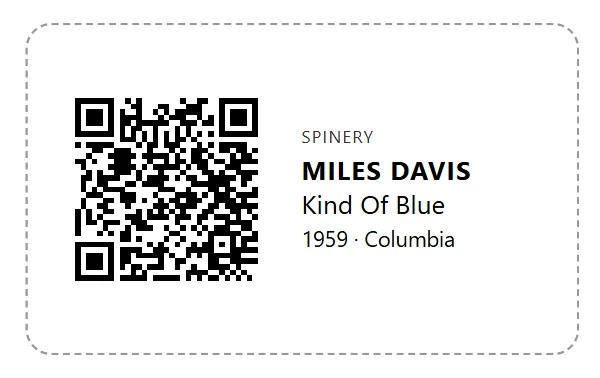
A label: the mark, artist, title, year, record label and the code to scan. -
Bring your collection over from Discogs
If your collection is already on Discogs, there's no need to build it again. First link your account: tap "Link my Discogs account", the Discogs website opens and you say yes. No key to copy.
Then "Import the collection": before writing anything, the app shows you what it recognises for certain, what's already in the collection and what's worth checking. Covers and tracks arrive by themselves in the minutes after; in the same way "Import the wishes" brings over your Discogs list. Discogs doesn't know the provenance: that you add yourself, whenever you like.
In the appMore → Sources and links → "Link my Discogs account" → "Import the collection"
-
Ask the Curator
The Curator is an AI that knows your collection record by record, and it's included: with your e-mail confirmed, everyone in the circle has ten questions a day. From Home tap "Ask the Curator…", or its sign in the top bar; from a record's or an artist's page, "Ask the Curator". Questions count together, wherever they come from.
It opens straight away: what the Curator sees and what it sends to the provider you read at your first sign-in, in "To use Spinery". Write your question; if it proposes a wish or a change, it makes it only when you confirm.
In the appHome → "Ask the Curator…"
And every week the Curator picks seven records for you, each with its reason: you find them on Home and in More → Suggestions, where you put them in your wishes or turn them down.
If you need more than ten a day, add a key of your own, from any provider: with it our limits don't count, and the key stays on your phone.
Beyond the limits, in the appMore → Settings → Your AI service → your key
How the Curator works, and what the provider sees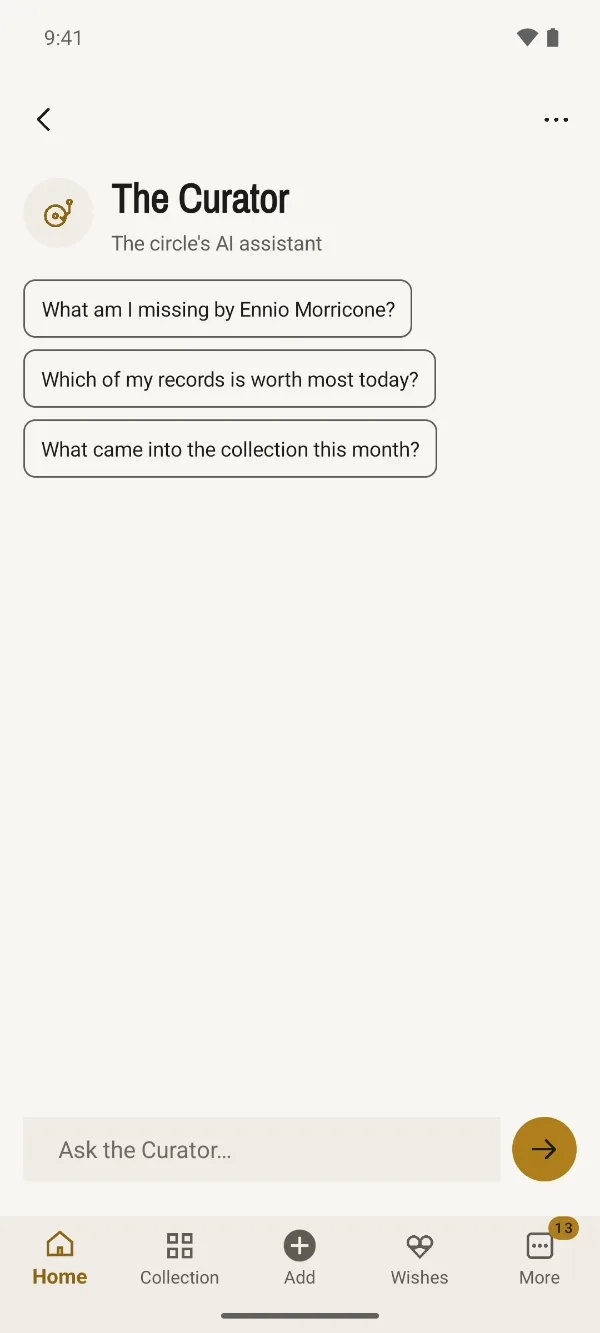
-
Share a record
To show a record to someone outside the circle, Spinery prepares a page for it: the images, your edition, the tracklist with the previews, the credits and the technical data, with your name as the circle sees it. You send the link however you like, from your phone's share sheet.
The page stays open for seven days and never shows provenance, notes, ratings, where the record sits, prices and value, or the photos you took. You can close it earlier whenever you like, with "Cancel sharing…".
In the appthe record's page → the ⋯ menu → "Share…" → "Create the page and share"
The open pagesMore → Settings → Shares
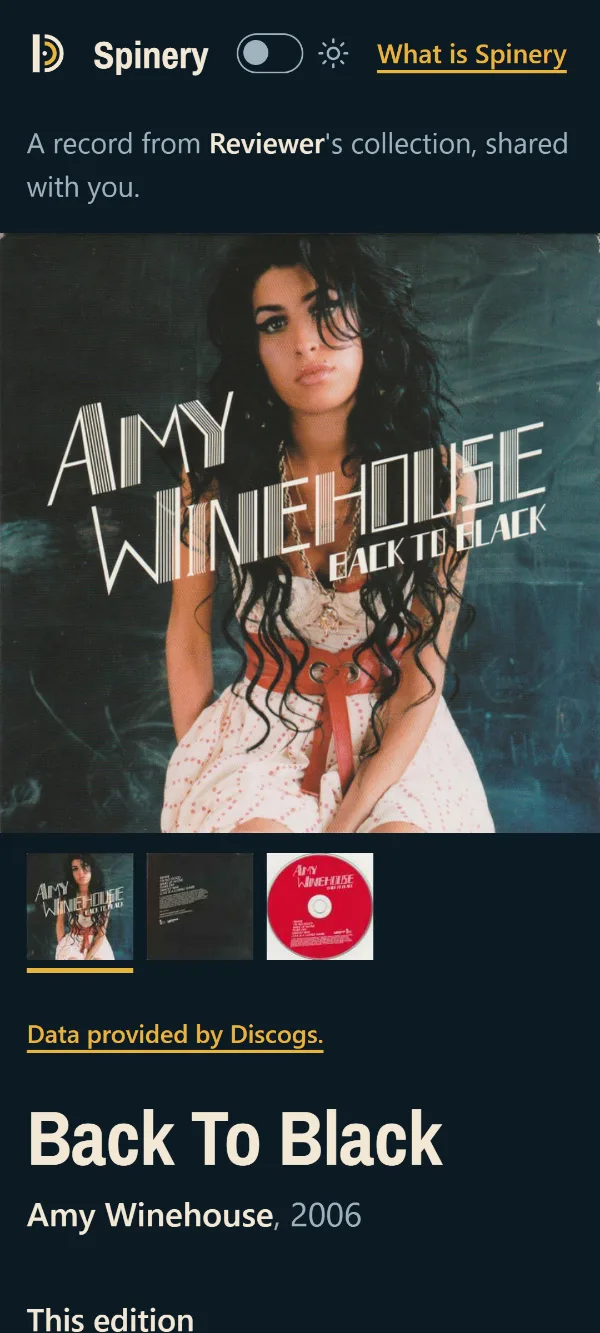
The page whoever opens the link sees: the record's images and, below, your edition, the tracklist with the previews and the credits. 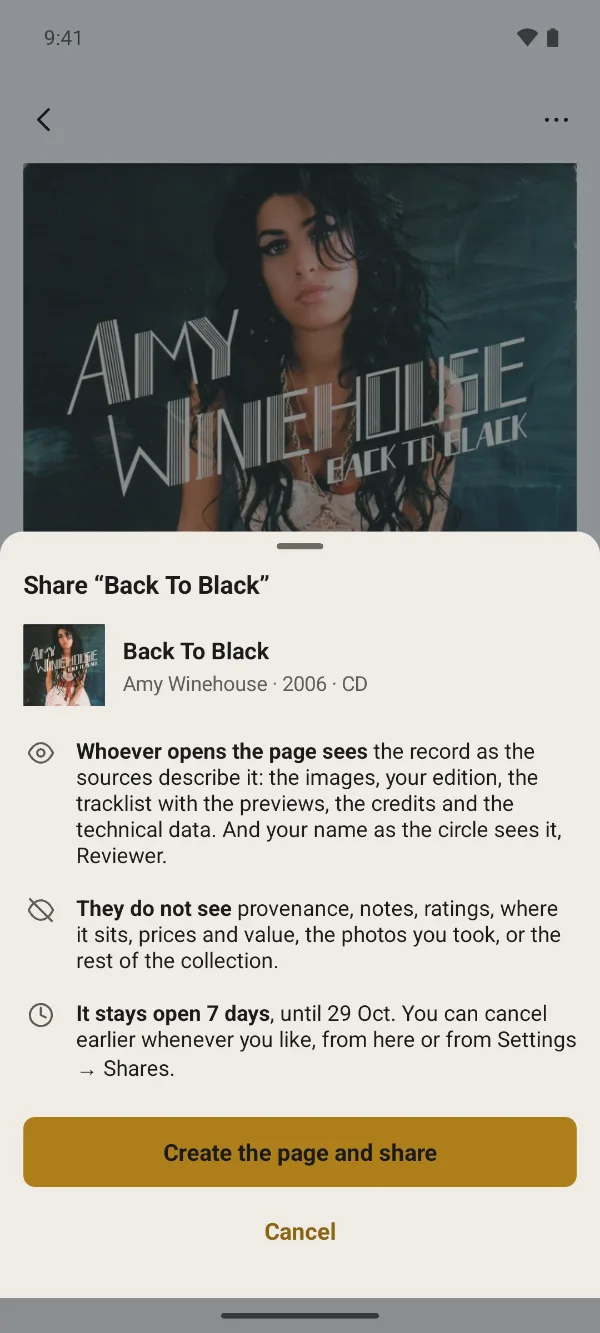


Need help?
Write to support@spinery.it: we answer in person, usually within a few days.
The questions people ask us most, in Support